Powerful AI,
paid in birr.
Use the same strong AI models the world pays — for a few birr. Pay with telebirr. Only pay for what you use.
Example rates on DeepSeek V4 Flash
Sign in to create your key in seconds.
No credit card
Pay with telebirr, the way you already pay for everything.
Strong models, tiny price
The big-name quality, for far less than a coffee a day.
Works in your apps
Drop your key into your coding and chat tools. One key, many models.
Pay as you go
Top up small amounts. Your balance only drops when you actually use it.
Sign in with Google
Key stays tied to you.
Create your key
You get it instantly
Pay with telebirr & send the receipt
We confirm it and topup your key
It's credit, not a monthly plan.
Load birr, it becomes credit, and each message or image sips a little from your balance. Nothing expires ; you only pay for what you use.
No monthly fee · no expiry · you only pay for what you use.
Create your key
One key works with every model and every tool. It starts empty — you add birr next.
Your key is ready
Copy it into your AI app. Keep it private — it's yours.
Your key is set up
For your security we show the key only once, when it's created. Lost it? Regenerate a new one — your old key stops working right away.
Top up with telebirr
Pick an amount, pay it on telebirr, then send the receipt. We topup your key.
1,850 birr → ≈ 670 messages with Sonnet 5
…or about 250 images with Nano Banana Pro
We verify, then activate. Takes just minutes.
Need a larger amount? Talk to us →
Set up in 5 minutes
Watch the quick walkthrough, then follow the steps for your tool.
Sign in with Google
Creating an account by clicking Continue with Google — no credit card needed.
Create your API key
Tap Create my key to get your
key (sk-or-v1-…). Copy
it right away — it's shown only
once.
Top up your balance
Pick an amount, pay with telebirr, then send the receipt on Telegram. We switch your key on.
Configure your tool
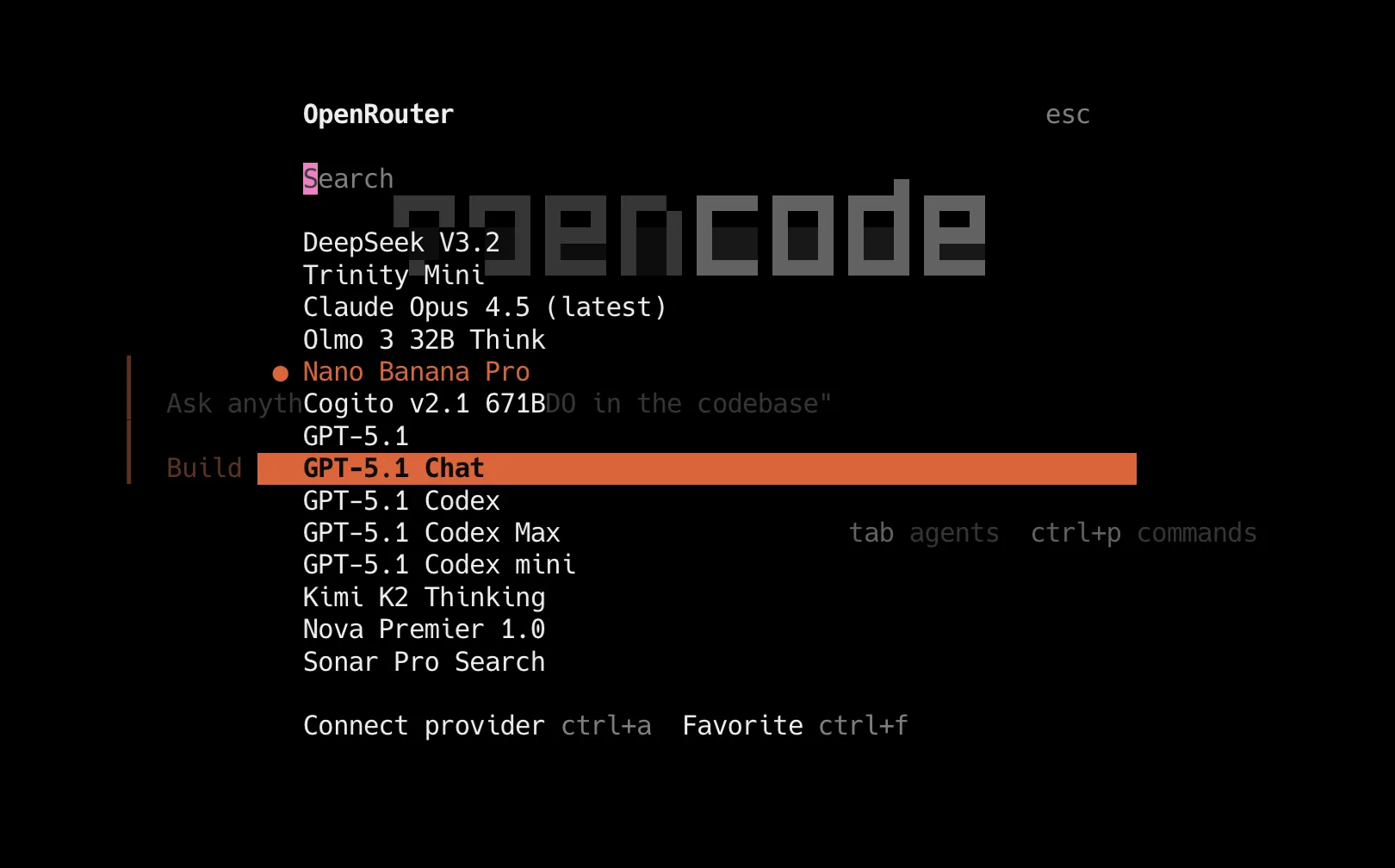
Opencode
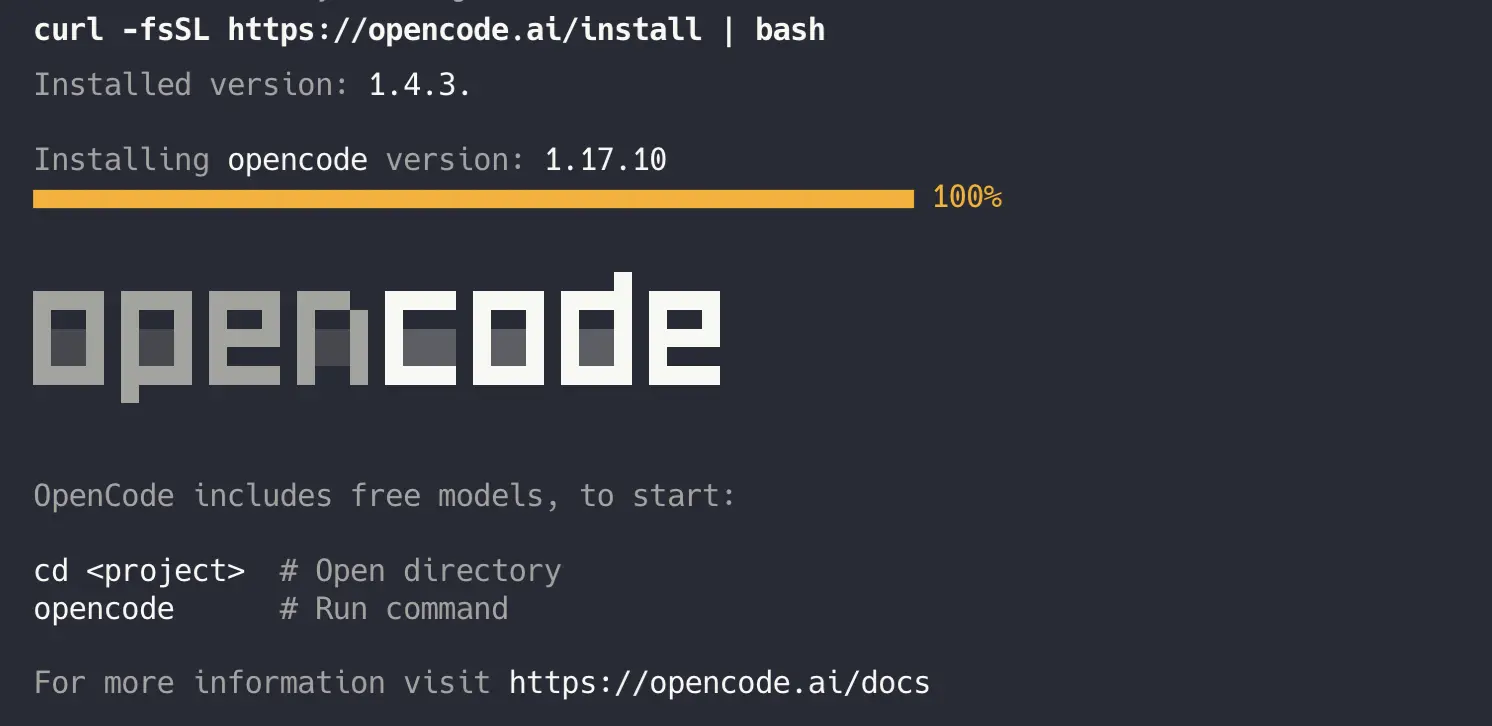
Point opencode at OpenRouter with your Yene AI key.
Install opencode and launch it
$ curl -fsSL
                                                    https://opencode.ai/install
                                                    | bash
$ opencode
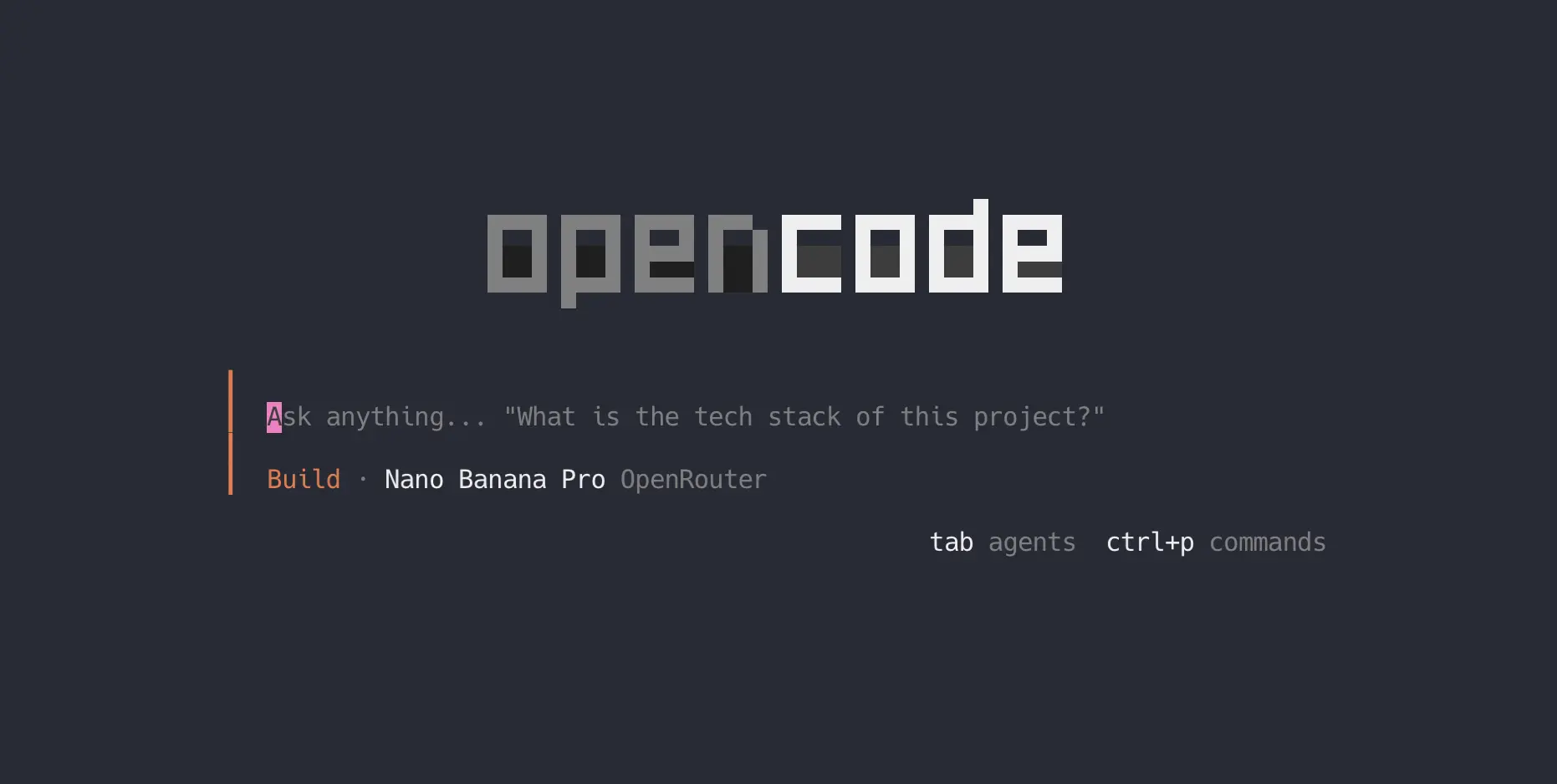
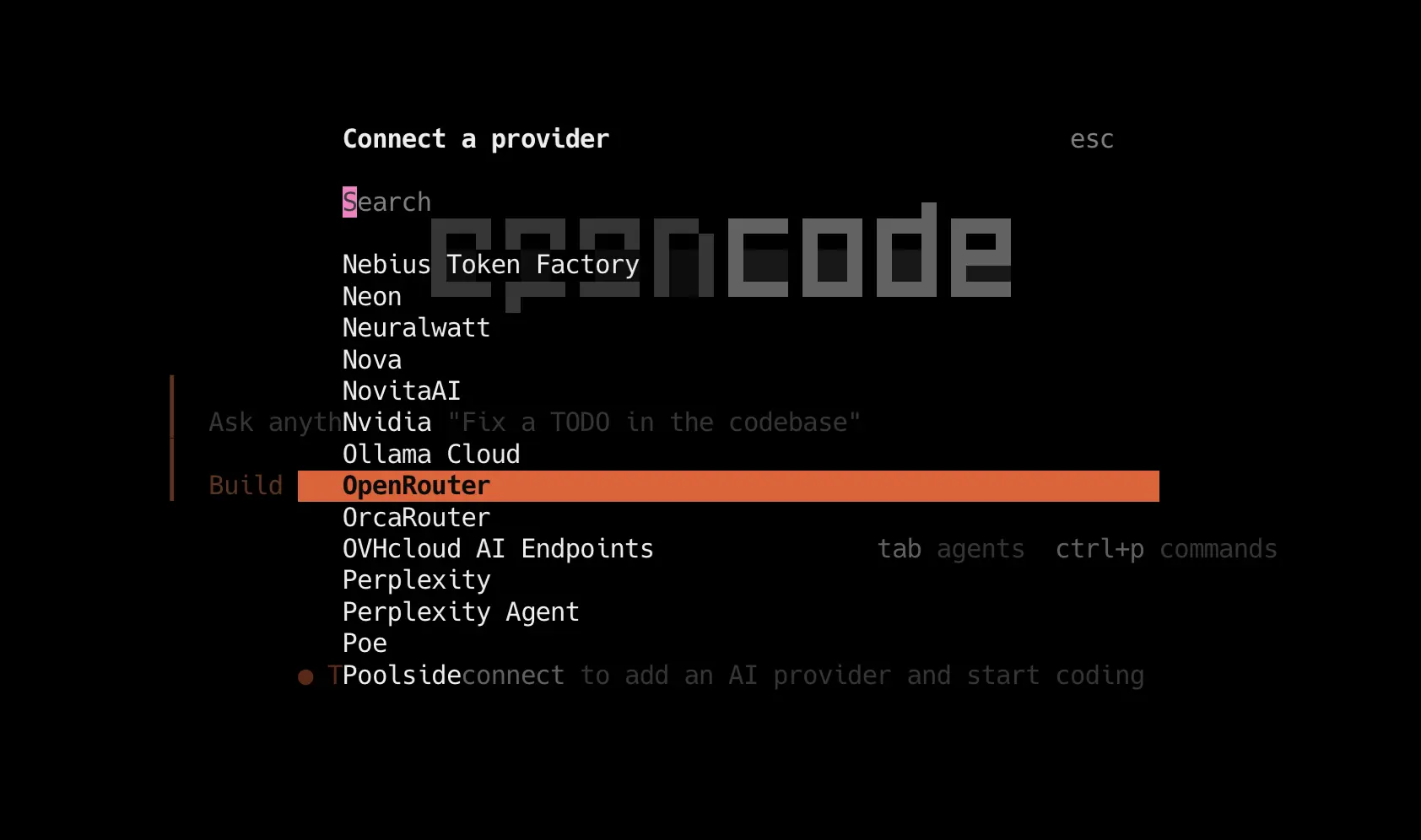
Select provider
/connect
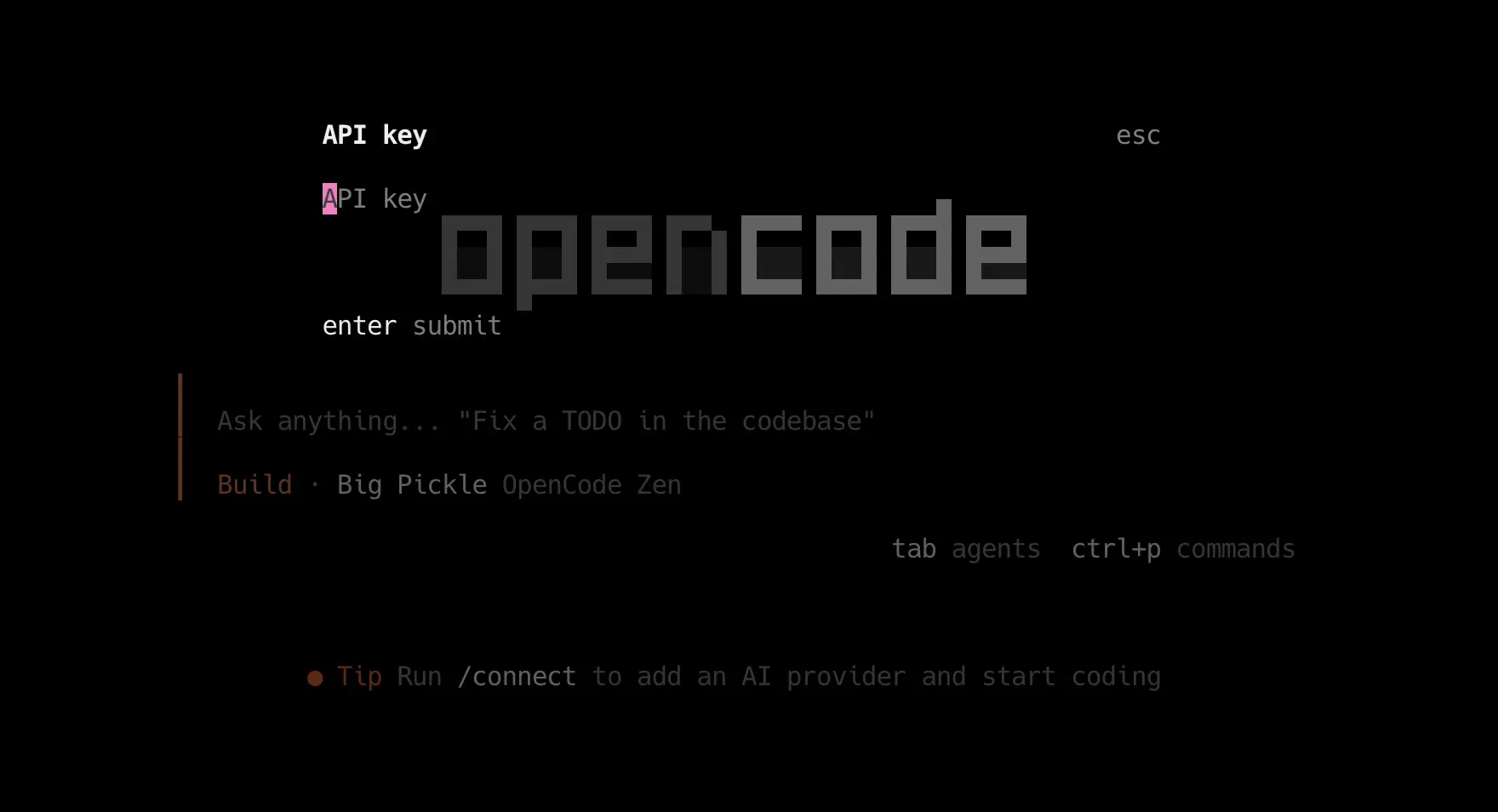
Add your API key
Paste your Yene AI key
(sk-or-…) when
prompted.
Pick a model and start
/model
Choose a model (e.g. DeepSeek) and send a message to confirm it works.
Cursor
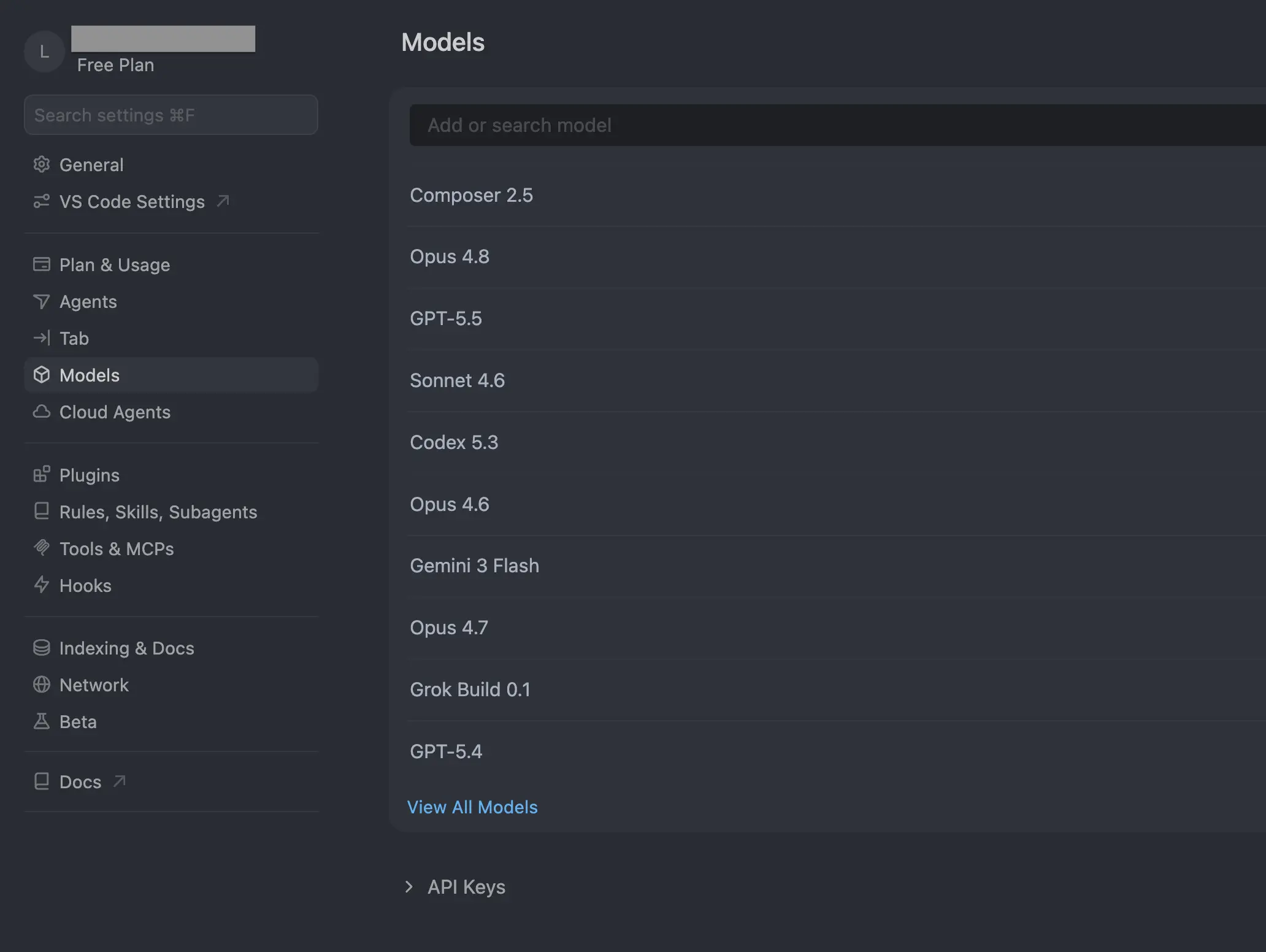
Override Cursor's API endpoint to use OpenRouter with your Yene AI key.
Open Cursor Settings → Models
Open Cursor Settings, select Models in the sidebar, then scroll down to the API Keys section.
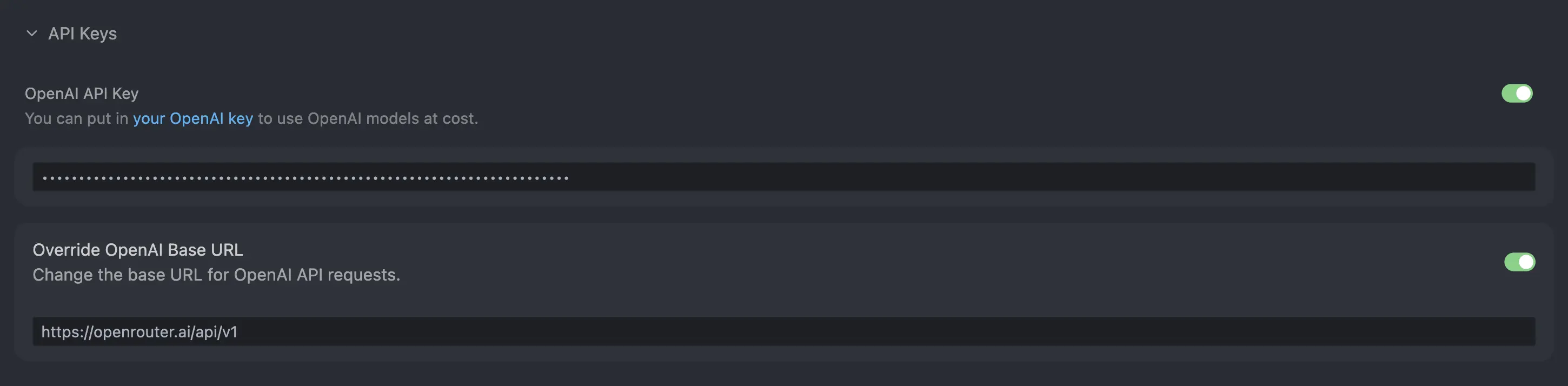
Add your key & override the base URL
Paste your Yene AI key into the
OpenAI API Key field, then
enable Override OpenAI Base URL
and set it to
https://openrouter.ai/api/v1.
Claude Code
Point the Claude Code CLI at OpenRouter using environment variables.
Set the base URL
In your terminal, run:
$ export ANTHROPIC_BASE_URL="https://openrouter.ai/api/v1"
Set your Yene AI key
$ export ANTHROPIC_API_KEY="your-yene-api-key"
Launch Claude Code
Run claude to
start. Claude Code will now use
your Yene AI key via OpenRouter.
$ claude
Codex CLI
Point OpenAI's Codex CLI at OpenRouter using your Yene AI key.
Install Codex
npm install -g
                                                    @openai/codex
$ npm install -g @openai/codex
added 1 package in 2s
$ codex --version
codex-cli 0.x.x
Point Codex at Yene AI
Codex uses a
config.toml file,
typically located at
~/.codex/config.toml. Create or edit this file with
the following configuration:
model_provider = "openrouter"
model="~openai/gpt-latest"
model_reasoning_effort = "high"

[model_providers.openrouter]
name = "openrouter"
base_url = "https://openrouter.ai/api/v1"
env_key = "YENE_AI_API_KEY"
Swap model for any
OpenRouter model id.
Set your Yene AI key
Codex reads the key named in
env_key above, so
export it in your shell profile
(~/.zshrc or
~/.bashrc):
$ export YENE_AI_API_KEY="your-yene-api-key"
Note: Codex reads the API key
from the environment variable
specified in
env_key (default:
YENE_AI_API_KEY).
Ensure this is set before
starting Codex.
Launch Codex
Run codex in your
project to start. It will now
use your Yene AI key via
OpenRouter.
$ cd ~/projects/my-app
$ codex